GUI load panel#
The very first panel of the PyPLUTO GUI is the loading panel, which allows the user to load the data files.
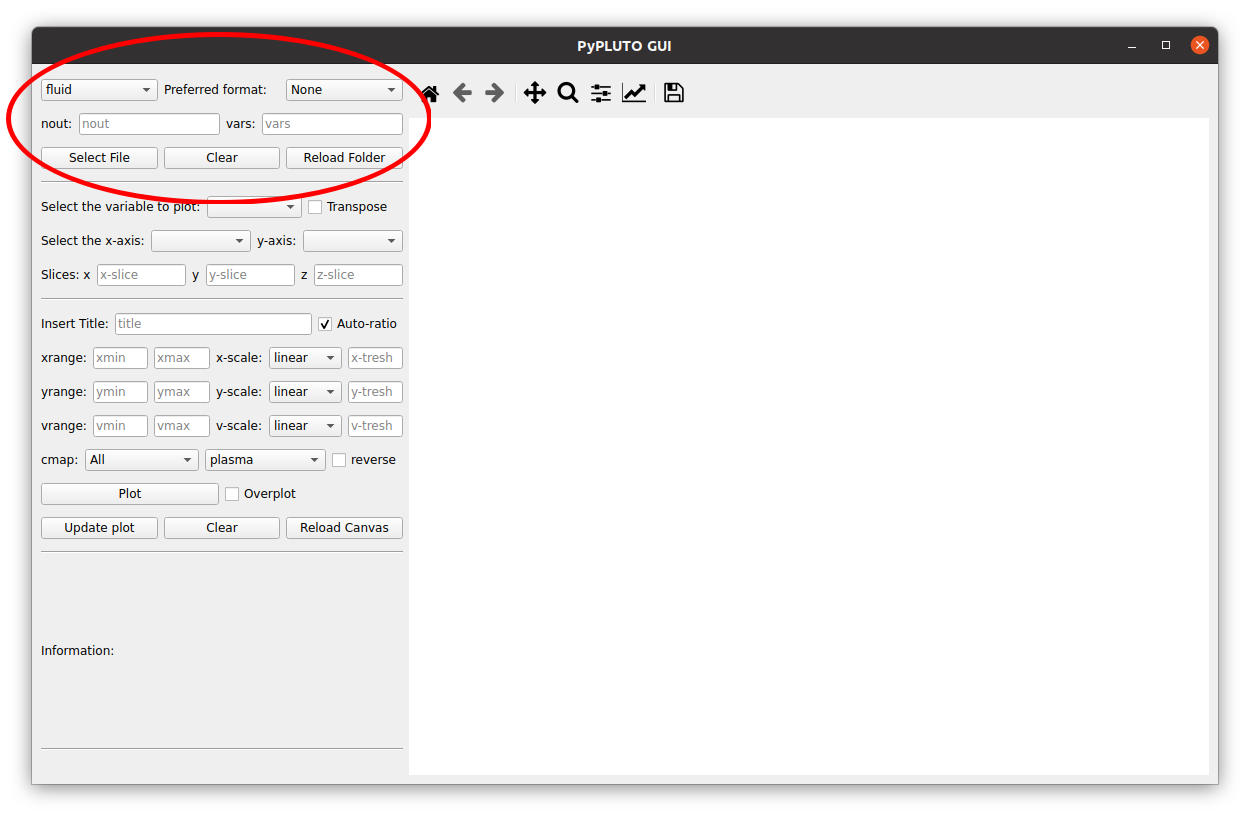
At the moment, the GUI supports only the loading of PLUTO fluid files. Once the particles will be available in the GUI, the loading panel will be updated to allow the user to load also the particle files from the very top left window.
To load the data files, the user can click on the “Select File” button. A window will open, allowing the user to select the desired file by clicking on it. If the selected file is a valid PLUTO fluid file, the GUI will load the data and display some useful information on the bottom left GUI panel.
Options: format#
The preferred format combo box allows the user to visualize only the selected formats while searching the file. This is useful when the user has many files in the folder and wants to quickly find the desired file format.
Options: nout#
The second row of the loading panel contains the “nout” combo box, which allows the user to select the output time of the data file. Note that if the user selects a file that does not contain the selected output time, the GUI will raise an error. Moreover, this panel instruction is overruled by the interactive “select file” button (see below).
Options: vars#
By default, the GUI will load all the variable present in a PLUTO fluid file, even if the output is stored in multiple files. However, the user can also specify the variables to be loaded by using the “vars” combo box. This is useful when the user wants to load only a subset of the variables present in the file.
Options: clear load section#
The “Clear” button will simply clear the loading panel, allowing the user to start over with a new file selection. This is useful when the user wants to load a new file without having to close and reopen the GUI.
Options: reload#
The “Reload folder” button allows the user to quickly change the loaded variables or output time by reloading the folder. This is useful when the user has made changes to the data files or when the user wants to quickly switch between different output times or variables without having to close and reopen the GUI. TIP: if the GUI is started with a folder, the “Reload folder” button will automatically load the folder and update the loaded variables and output time. This is useful when the user wants to quickly load the current folder without having to select the file by hand.